APP Distribution
APP Distribution process
To submit and distribute IPAs that have completed the AppGuard SDK application to the App Store, AppGuard Sign must finally be applied in AppGuard Manager. AppGuard Sign must be applied in order to detect IPA modulation option to be performed successfully.
If the AppGuard Sign is not applied to the IPA, the AppGuard security policy may cause the App to terminate abnormally.
AppGuard Sign
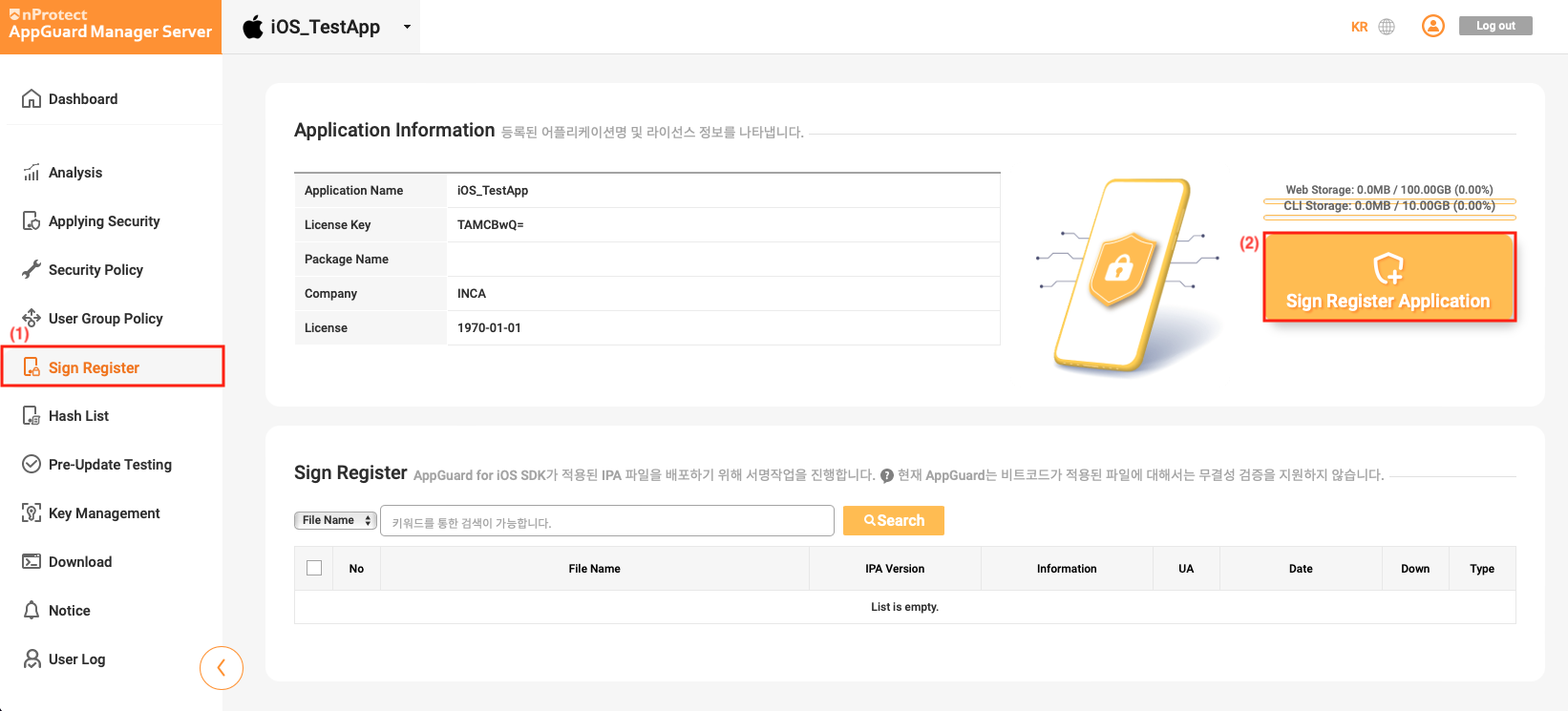
Select the [Sign Register] in the AppGuard Manager, and click [Sign Register Application] button.
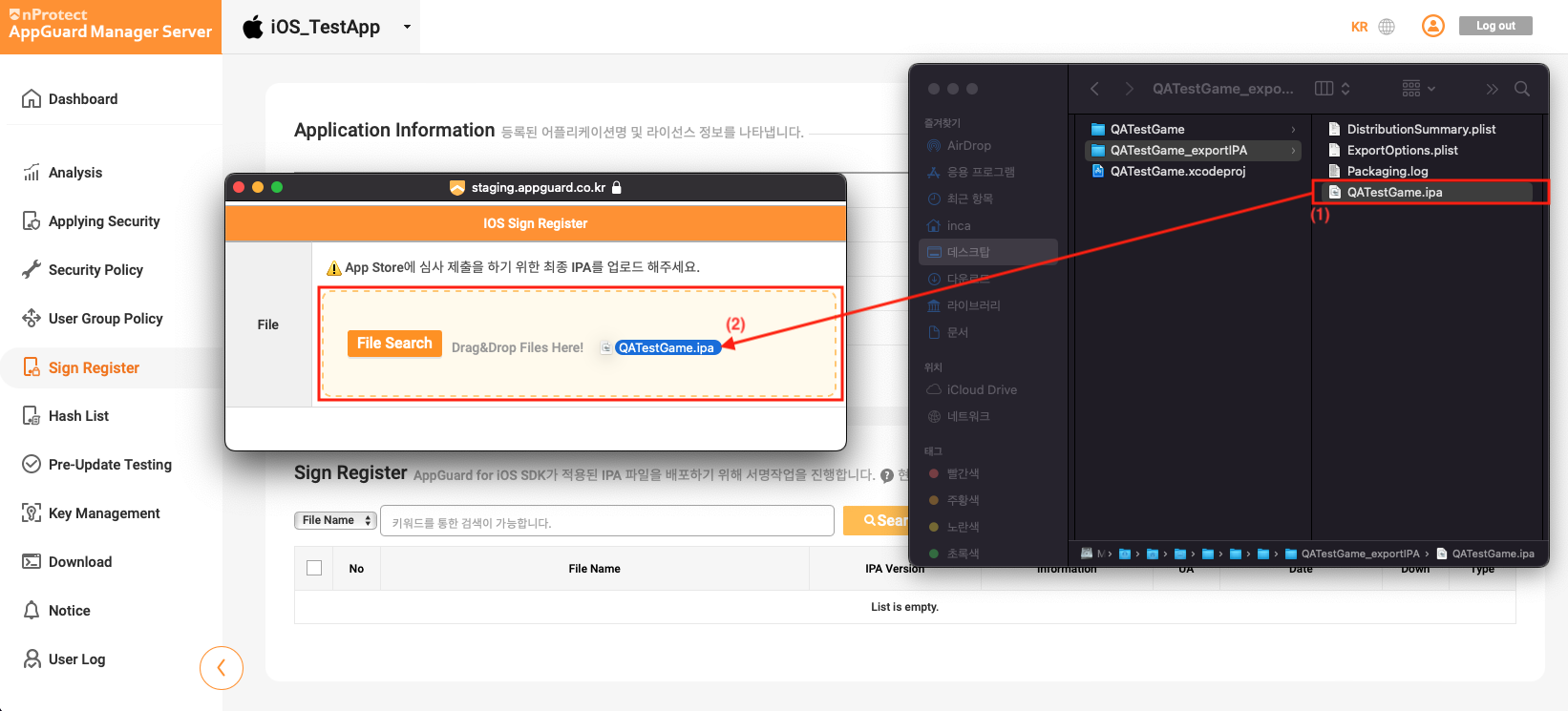
Drag & drop the IPA file you want to register with AppGuard Manager in the [IOS Sign Register] window.
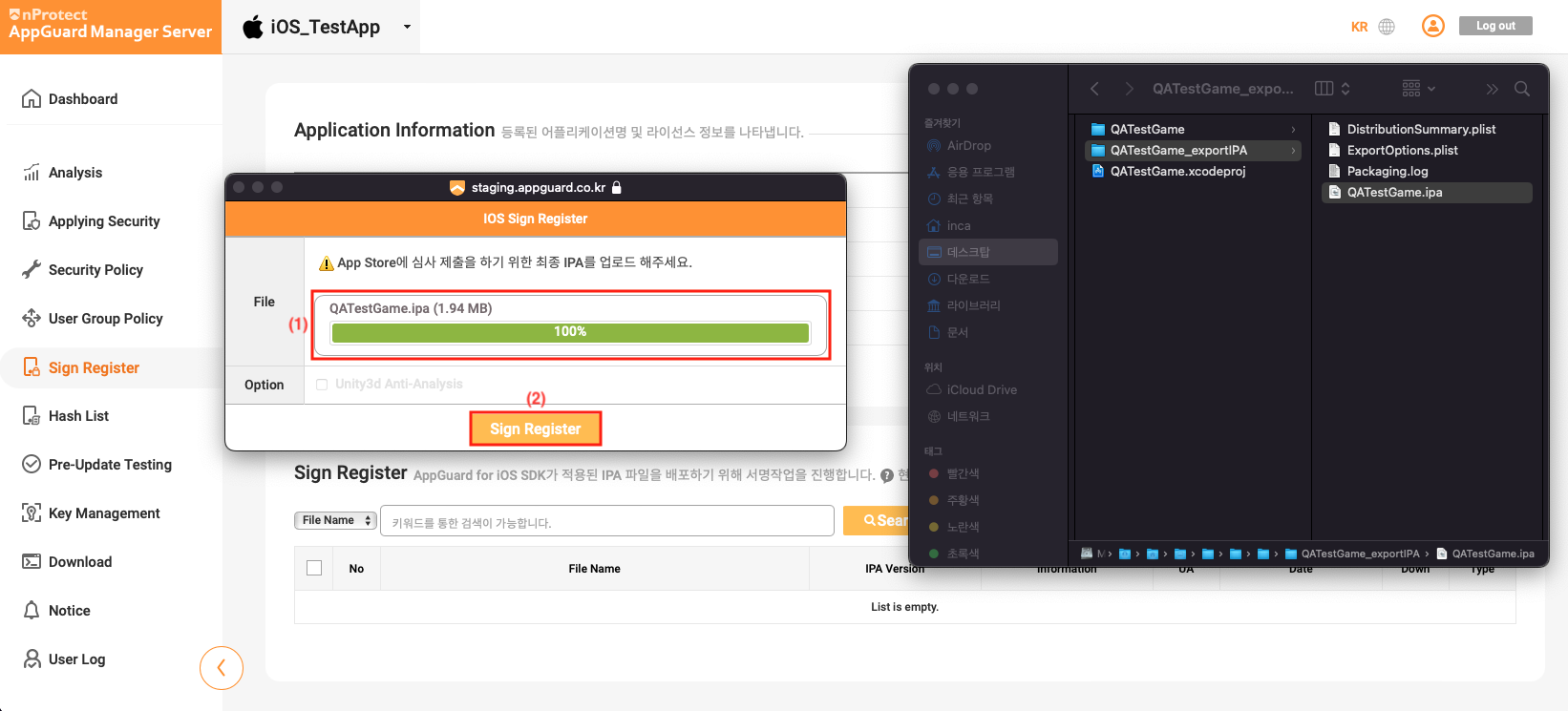
After uploading the IPA file to the [IOS Sign Register] window, click the [Sign Register] button at the bottom.
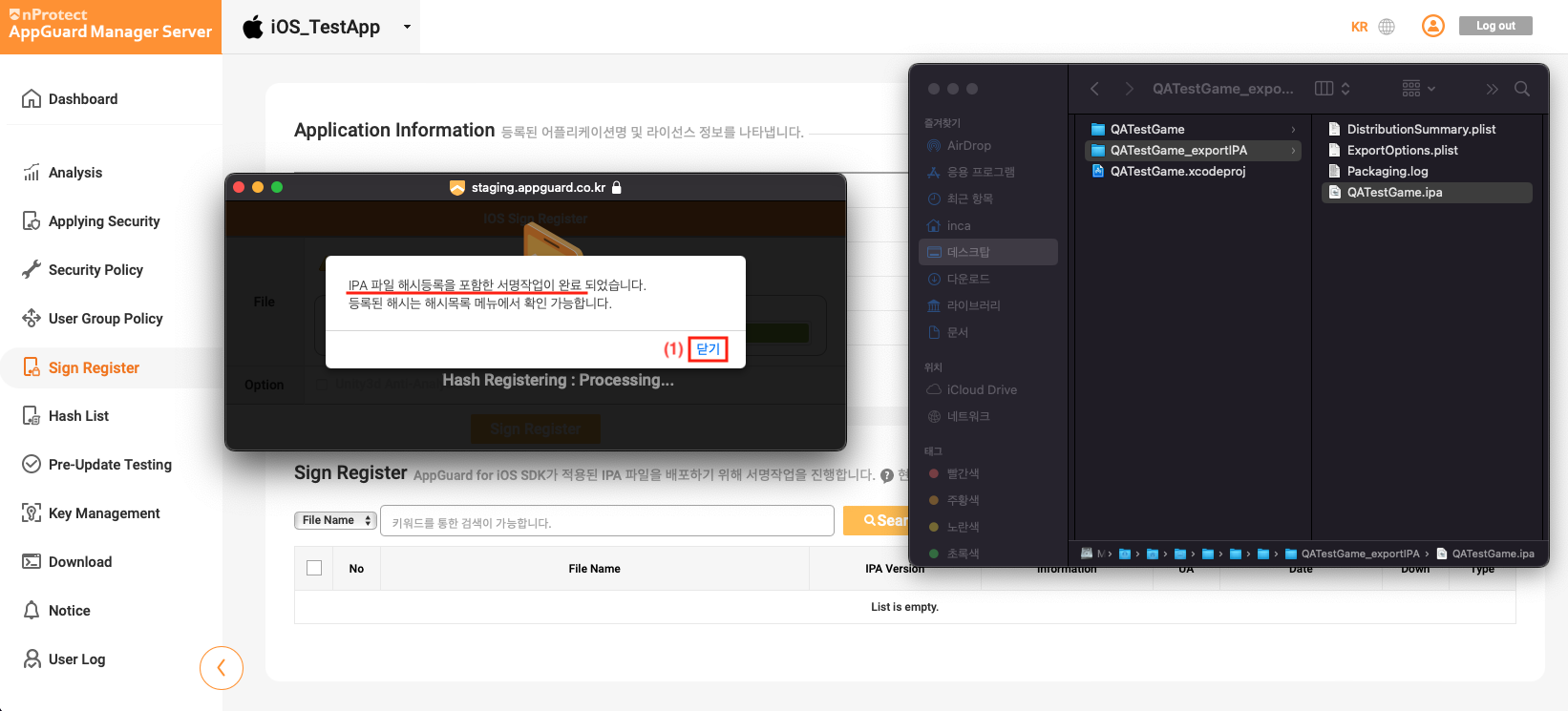
Click the button to close the process complete window.
Once the registration is complete with AppGuard Manager, you can check the registration information as follows. Click the Down button to download the registered IPA.
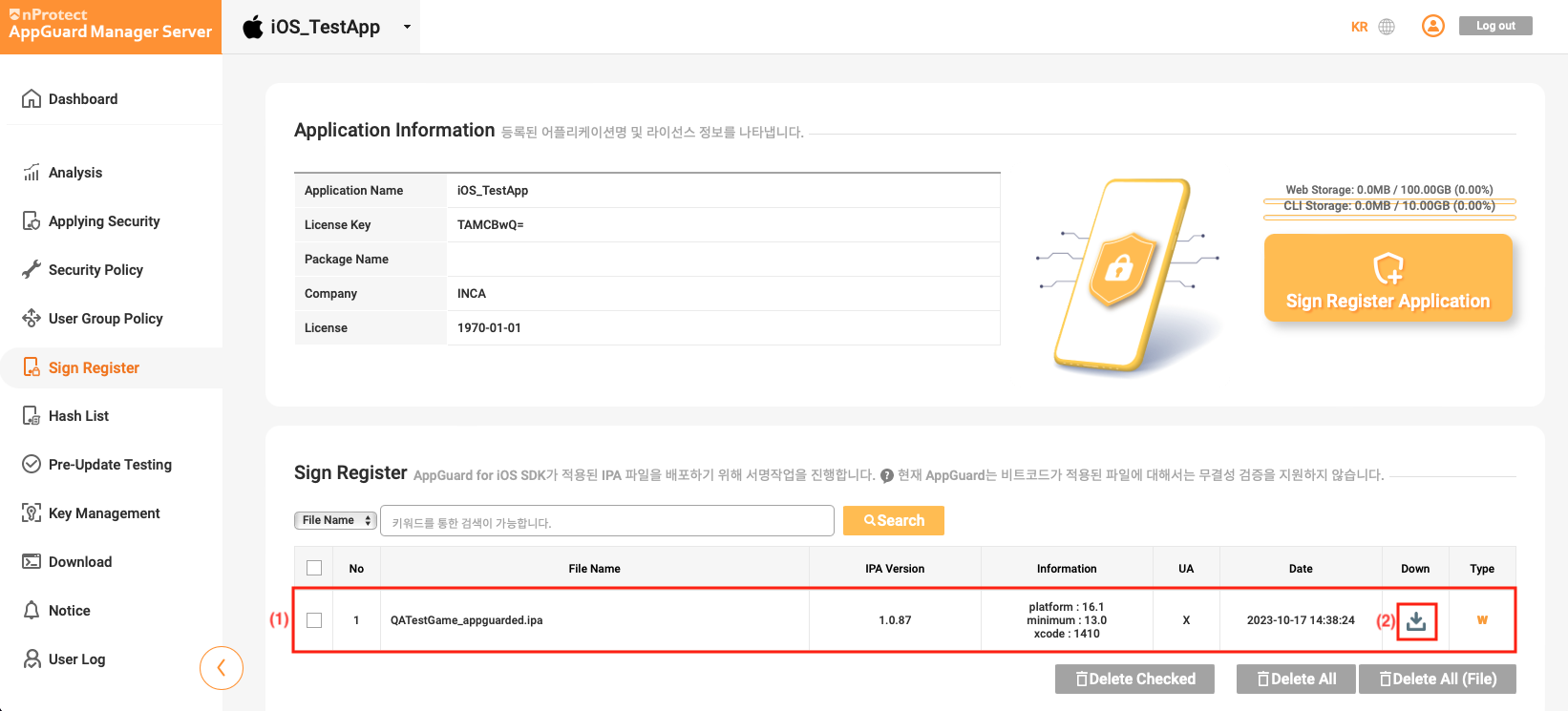
IPA Code Sign and Distribution
IPA that applied AppGuard Sign in AppGuard Manager requires code signing as a customer company's distribution certificate.
AppGuard provides iparesign.sh script for the convenience of code signing as a customer company's distribution certificate.
Create a folder to perform code signing and copy IPA that applied AppGuard Sign and iparesign.sh file.
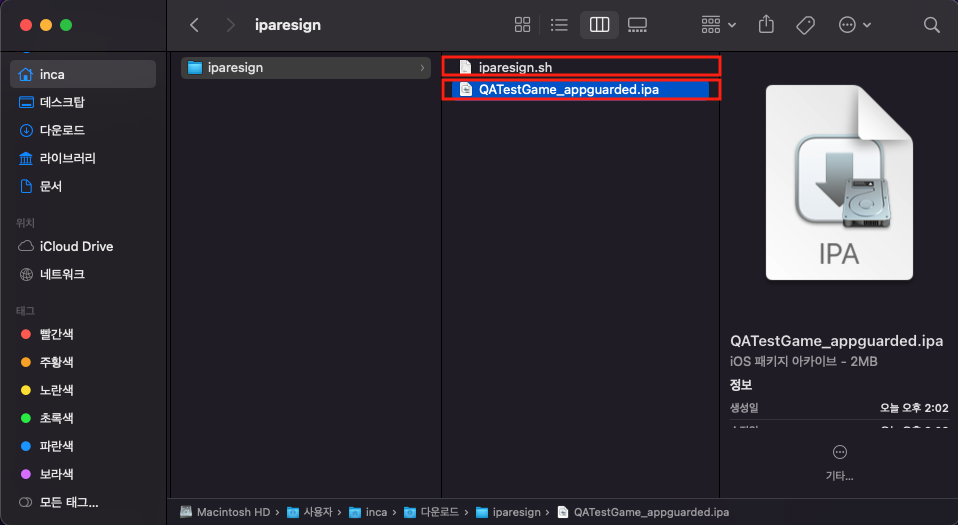
Open a Terminal, and go to the folder to sign the code. Enter the command as follows to proceed.
$ cd [iparesign.sh location path]
$ ./iparesign.sh --ipa [/path/to/your_app_appguarded.ipa]
When signing the code, the progress log step can be checked. Check if it has been performed as normal as shown in the log as follows.
1. Check if an ipa file exists
[success] "QATestGame_appguarded.ipa"

2. unzip ipa package
[success] "QATestGame_appguarded.ipa"

. . .

10. codesign the app
/Users/inca/Downloads/iparesign/resigncompleted/Payload/xCode_1402_TestApp.app: replacing existing signature
[success] codesign the app

11. zip the package
[success] "/Users/inca/Downloads/iparesign/resigncompleted/QATestGame_appguarded_resigned.ipa"
(this ipa file has to upload at appstoreconnect.apple.com)
============= resign completed =============
inca@c2211-001Macmini iparesign %
When iparesign.sh performs successfully, resigncompleted/your_app_appguarded_resigned.ipa with a code signing is created.
By using [Transporter], the file can be used for submitting AppStore for review.
iparesign detailed information
iparesign.sh is the Shell Script that is provided for convenience of code signing as a customer company's distribution certificate.
iparesign.sh --ipa path [--entitlements path] [--profile path] [--identity "Your Signing Identity"] [--out path]
| Option | Description |
|---|---|
--ipa | Option for specifying the IPA to for code signing. |
--entitlements | Option for specifying the entitlements file. |
--profile | Option for specifying profile for code signing. |
--identity | Option for specifying Signing Identity for code signing. |
--out | Option for specifying the location of the creation of the IPA that applied code sign. |
To sign code using iparesign.sh, the PC must have a certificate for deployment installed.