App Deployment
Deploying the App
To submit and distribute an IPA with the AppGuard SDK applied to the App Store, you must apply AppGuard Sign through the AppGuard Manager as a final step. AppGuard Sign is essential to ensure that the tampering detection feature of the IPA functions correctly.
If AppGuard Sign is not applied to the IPA, the app may terminate abnormally due to security policies.
Applying AppGuard Sign
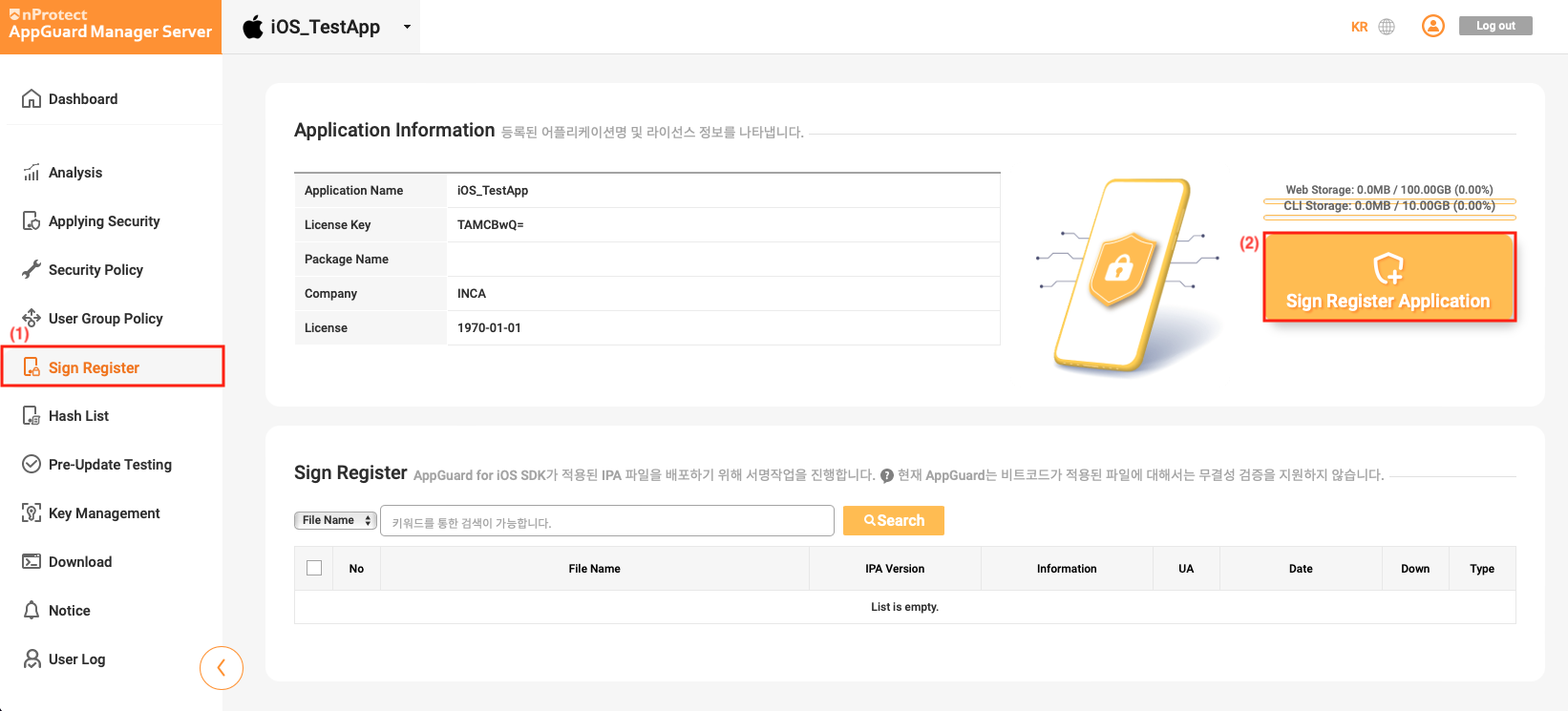
In the AppGuard Manager, select [Sign Register] and click the [Sign Register Application] button.
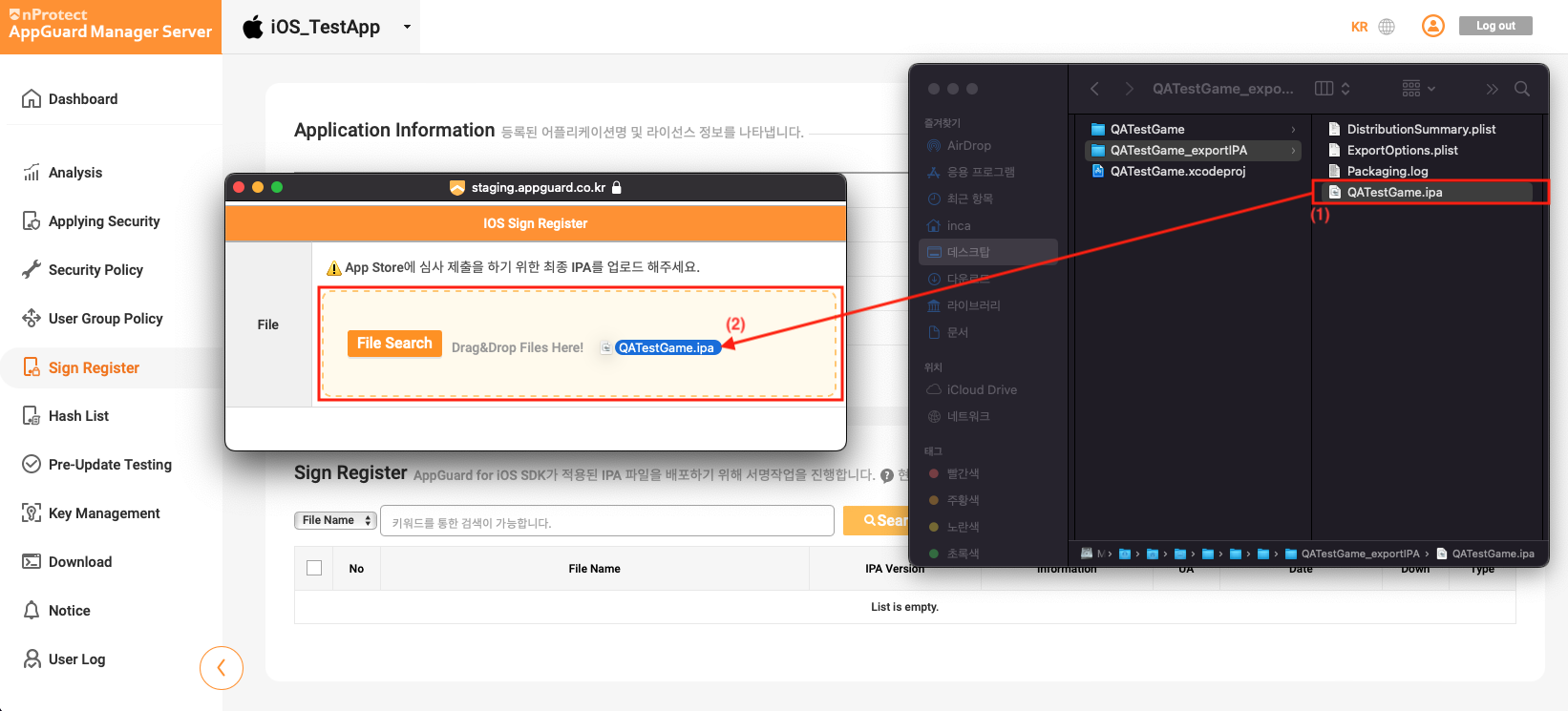
Select the IPA file to register in the AppGuard Manager and drag & drop it into the [IOS Sign Register] window.
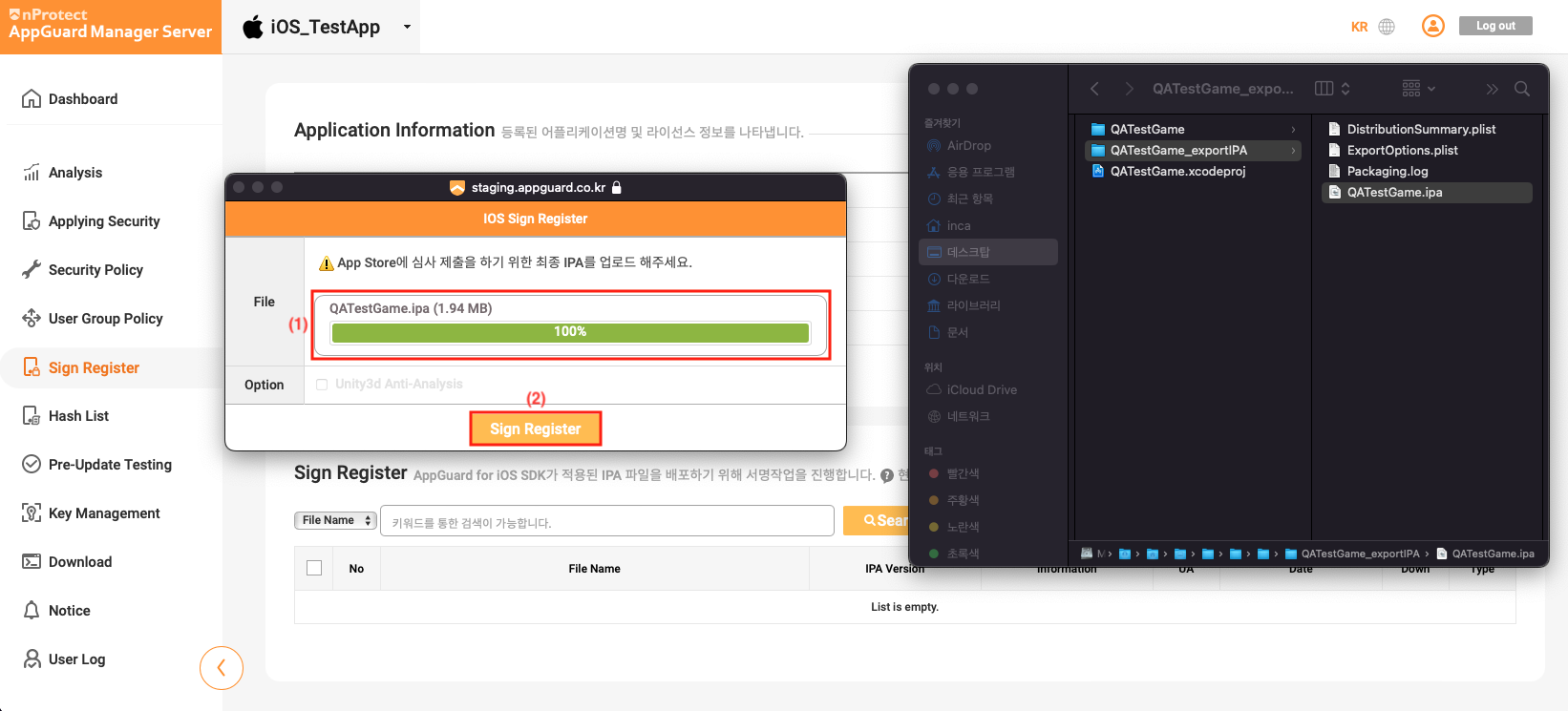
Once the IPA file upload is complete, click the [Sign Register] button.
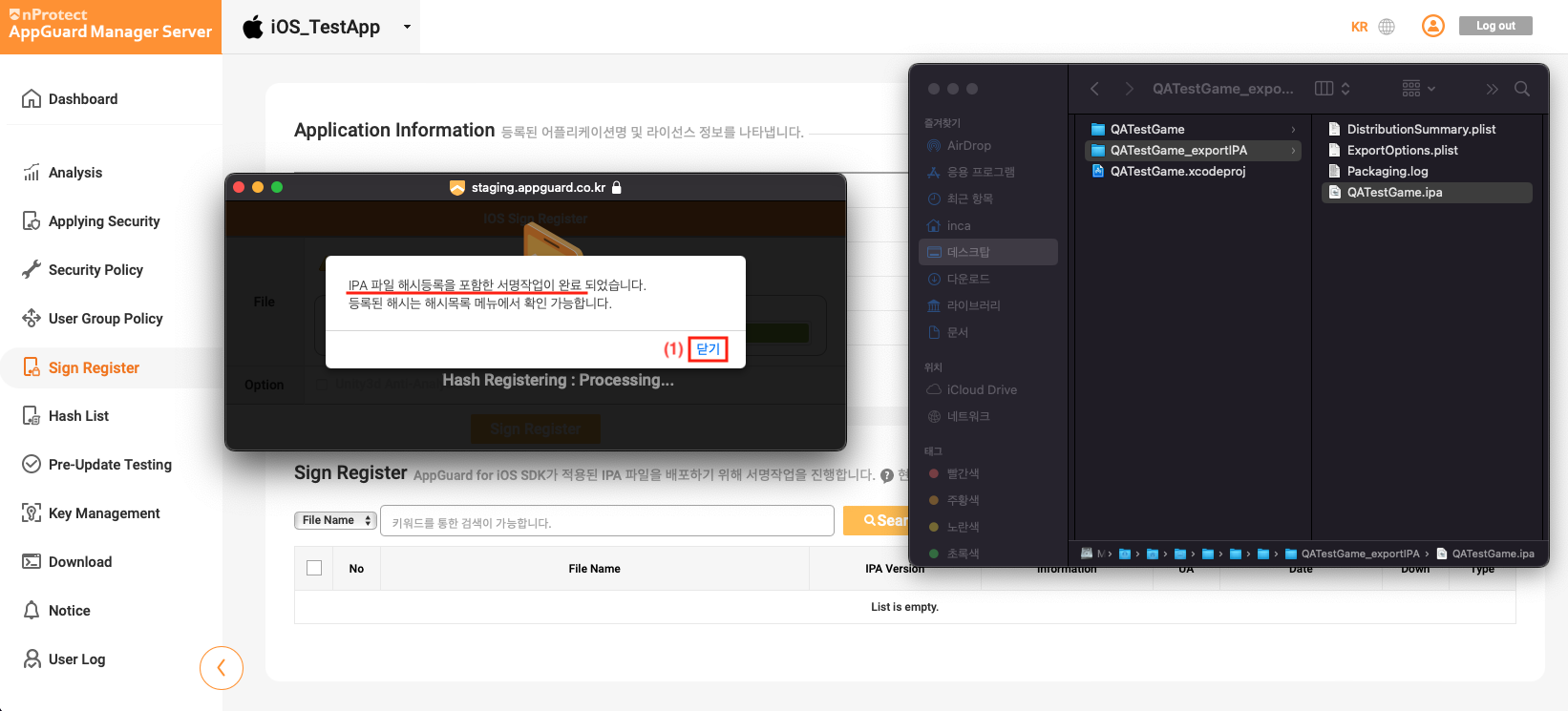
After the signing process is completed, click the Close button.
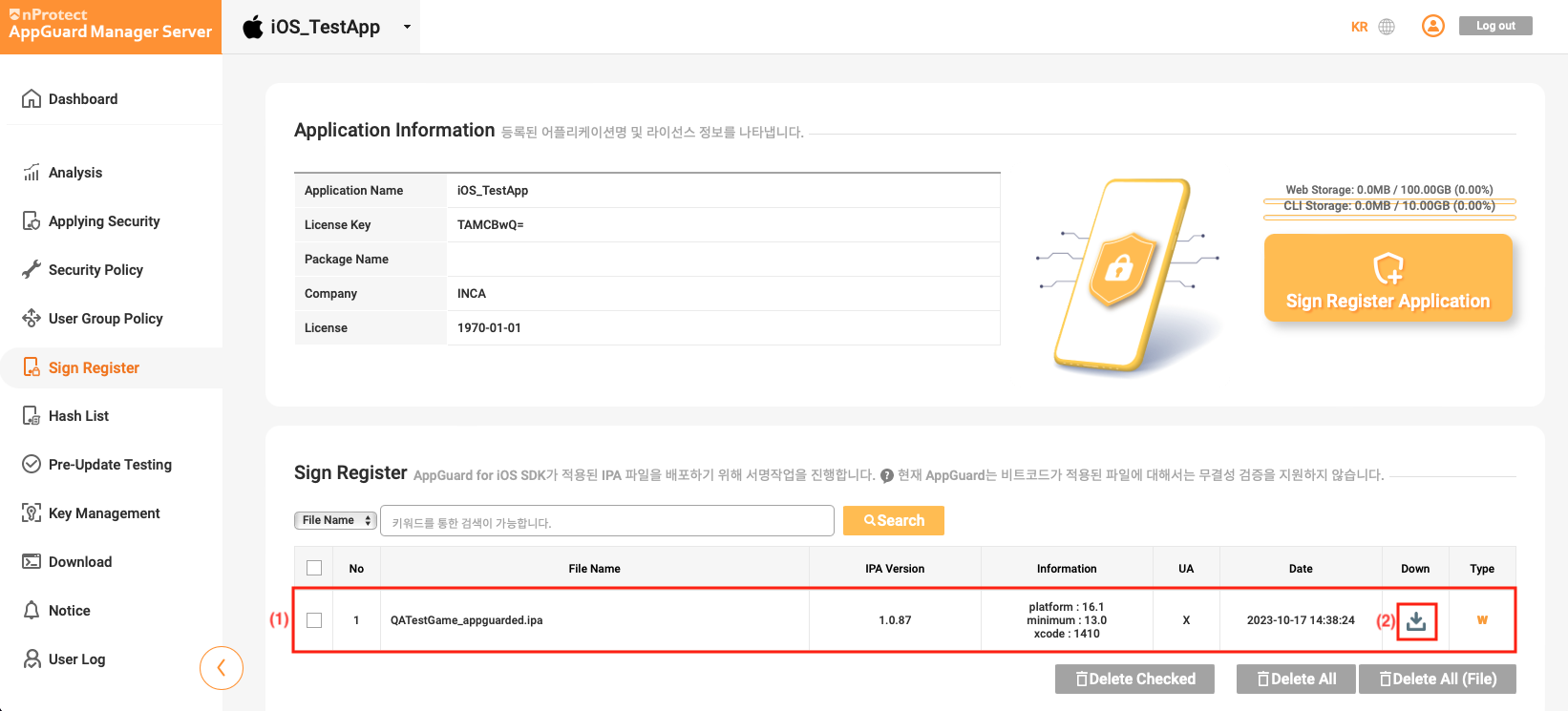
Once the registration is complete, you will be able to verify the registered details as shown below, and you can download the signed IPA by clicking the Down button.
IPA Code Signing and Distribution
The IPA with AppGuard Sign applied must be code-signed using the customer's distribution certificate. We provide the iparesign.sh script to make it easy for customers to apply code signing with their certificate.
-
Create a folder to perform the code signing, and copy the signed IPA file and the
iparesign.shscript into this folder.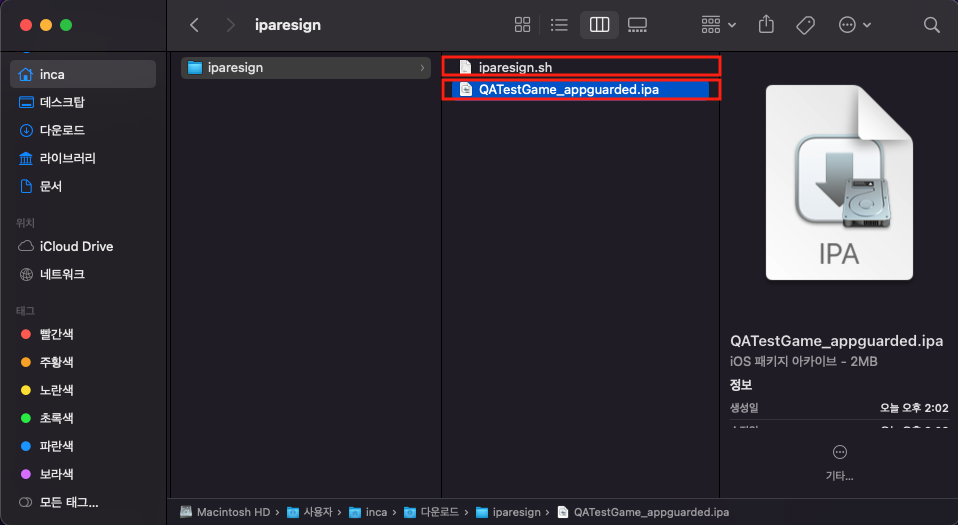
-
Launch a terminal, navigate to the folder where the code signing will be performed, and run the following command to proceed with code signing.
$ cd [path to iparesign.sh]
$ ./iparesign.sh --ipa [/path/to/your_app_appguarded.ipa] -
Logs will display the progress of the code signing process. Verify that it completes successfully, as shown in the log below.
1. Check if an ipa file exists
[success] "QATestGame_appguarded.ipa"

2. unzip ipa package
[success] "QATestGame_appguarded.ipa"

. . .

10. codesign the app
/Users/inca/Downloads/iparesign/resigncompleted/Payload/xCode_1402_TestApp.app: replacing existing signature
[success] codesign the app

11. zip the package
[success] "/Users/inca/Downloads/iparesign/resigncompleted/QATestGame_appguarded_resigned.ipa"
(this ipa file has to upload at appstoreconnect.apple.com)
============= resign completed =============
inca@c2211-001Macmini iparesign % -
Once the
iparesign.shscript has been successfully executed, a signed IPA fileresigncompleted/your_app_appguarded_resigned.ipawill be generated. You can submit this file to the App Store using [Transporter].
Detailed Explanation of iparesign.sh Script
The iparesign.sh is a Shell Script provided to help easily apply code signing to an IPA file using the customer’s certificate.
iparesign.sh --ipa path [--entitlements path] [--profile path] [--identity "Your Signing Identity"] [--out path]
| Option | Description |
|---|---|
--ipa | Specifies the path to the IPA file to be code-signed. |
--entitlements | Specifies the path to the entitlements file. |
--profile | Specifies the path to the provisioning profile for code signing. |
--identity | Specifies the Signing Identity to be used for code signing. |
--out | Specifies the output path for the signed IPA file. |
To use iparesign.sh for code signing, a distribution certificate must be installed on the PC being used.